Driver & setup guide
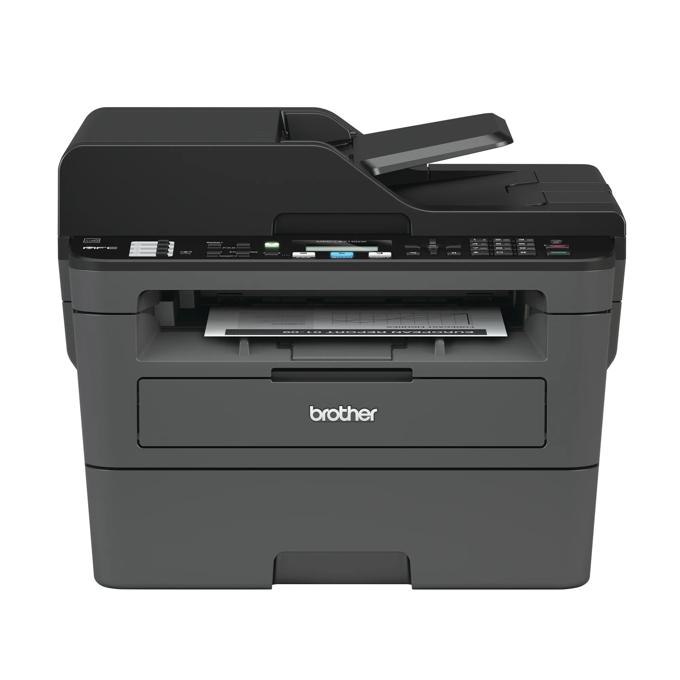
Brother MFC-L2710DW
A monochrome laser all-in-one with printing, scanning, copying and fax. The full package includes setup options beyond the separate print driver.
Driver downloads
Select your system and functions
Printer Driver is the smaller printing option. For scanning or fax setup, read the full package description on Brother’s page.
Choose the installation computer’s OS
If you are using your phone to find a driver for a computer, select that computer’s OS. Check the version and architecture if you are unsure.
Find the version and architectureBrowse all documented files (3)
Files are listed by OS. Open the source page for version details and supported systems.
- Windows 11 (x64) · Printer driverView source
- Windows 11 (x64) · Manufacturer setup packageView source
- Linux (deb) · Linux driver packageView source
Manufacturers may update these files. Check the linked official notes before downloading.
Keep the complete model number: MFC-L2700DW, L2710DW and L2750DW have separate support entries.
Prepare & install
Installation steps
- Confirm the device and computer
Match Brother MFC-L2710DW on the device, including its suffix. Check the target computer’s OS and architecture before choosing the file above.
- Read component and connection instructions
Check whether the official instructions ask you to connect USB during setup; do not apply one plug/unplug rule to every printer. For network setup, confirm the computer can reach the printer’s network.
- Install the functions you need
For printing only, first check a separate printer driver. If the manufacturer offers only a setup package, read its component options. Avoid installing overlapping suites consecutively.
After installation
Print a test page
Send a new small job from this computer and check the actual paper output. If you need scanning, preview a newly scanned page in the scanning application.
Troubleshoot printing or scanningDid this setup guide help?
Optional: send this page’s model, language, selected OS, purpose and result. No name, serial number or search terms; kept for 30 days. Your answer is user feedback, not a PDrivers hardware test.
Read about this dataDownload questions
Where do the downloads come from?
Download buttons open the manufacturer file address shown beside them. PDrivers does not store, relay or modify driver installers. Check license terms and installation requirements on the official instructions page.
My OS is missing. Is it unsupported?
Not necessarily. This list contains the exact OS/file records we have collected. Use the manufacturer’s OS selector to check. A nearby version number is not enough to establish compatibility.
Do I need the full software package?
This model has scanning hardware. For printing only, check the separate driver; for scanning, compare the scanner component, full package and supported built-in scanning options.
What if the official file link stops working?
Open the manufacturer’s support page and look for a replacement release. If the link still appears wrong, report it using the correction link below. Avoid unofficial mirrors with similar-looking names.
If it still won’t work
Troubleshoot this printer by its symptomsSources
Compiled from manufacturer support entries and collected file metadata. If this guide differs from a current official release page, follow the manufacturer’s instructions.
This guide is based on published documentation. We have not tested installation on a physical printer.
Suggest a correctionMore from this manufacturer
More model guides
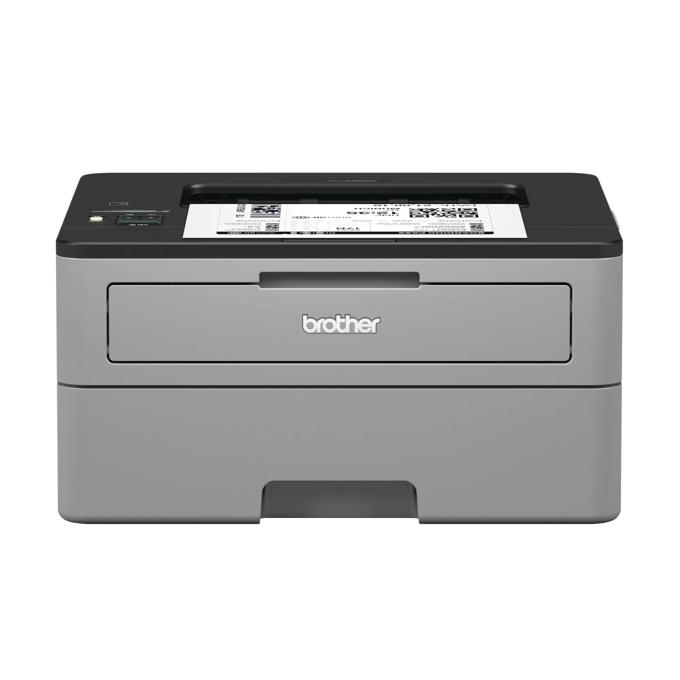
Brother HL-L2350DW
Print · Laser
A compact monochrome laser for printing only. Brother lists a separate Printer Driver and a full software package for Windows.
Find the right download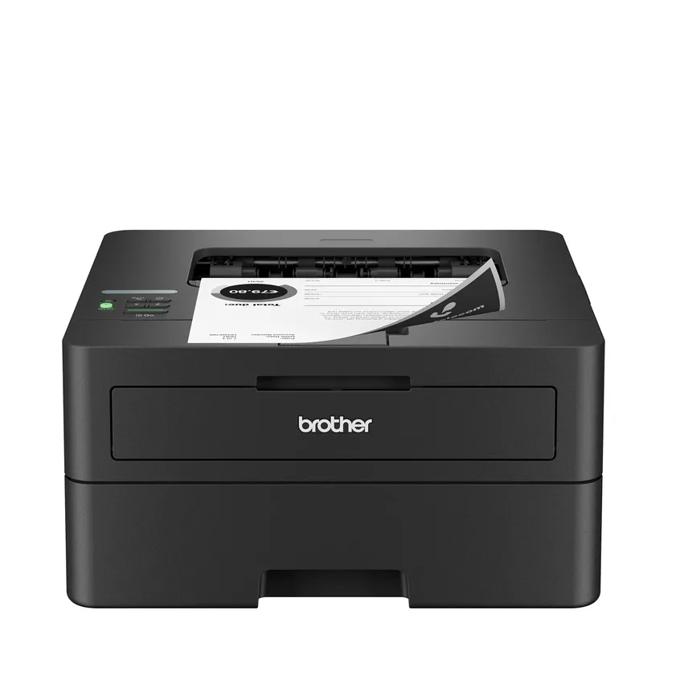
Brother HL-L2460DW
Print · Laser
A compact monochrome laser with automatic duplex printing, from Brother’s HL-L2400 generation.
Find the right download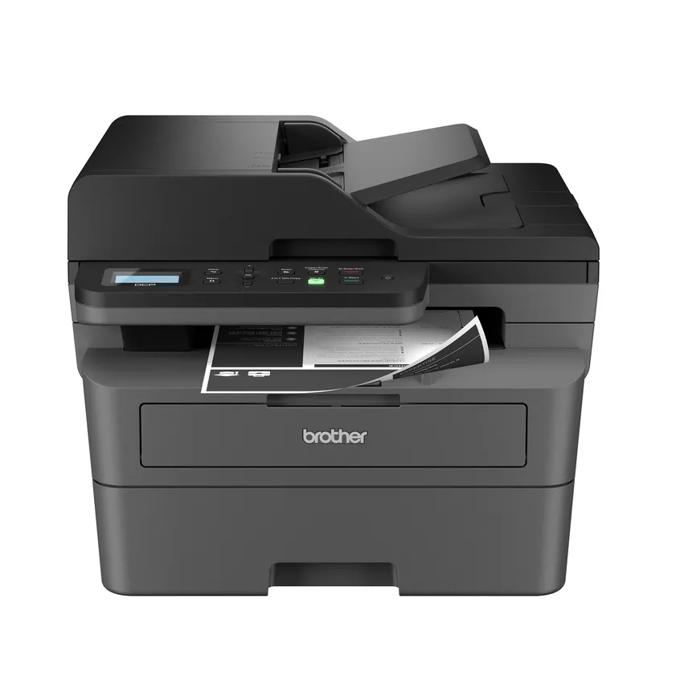
Brother DCP-L2640DW
Print & scan · Laser
A monochrome laser all-in-one with an automatic document feeder for scanning multipage documents.
Find the right download